세로로 하는 퍼즐 게임인데 폰을 눕히자 화면이 같이 돌아 UI 가 찌그러지거나, 가로 레이싱 게임이 침대에 누워 하면 세로로 바뀌어 버리는 일이 있습니다. 유니티에서는 Player Settings 의 Default Orientation 으로 앱이 켜질 때의 방향을 정하고, 실행 중에는 Screen.orientation 에 값을 넣어 세로나 가로로 고정합니다. 기기를 따라 돌게 두되 세로끼리만, 가로끼리만 돌게 하려면 Screen.autorotateTo 네 값을 함께 씁니다.
Screen.orientation = ScreenOrientation.Portrait;        // 세로 고정
Screen.orientation = ScreenOrientation.LandscapeLeft;   // 가로 고정
이번 글에서는 씬마다 방향을 정해 두는 OrientationLock 과, 영상 보기처럼 버튼을 눌렀을 때만 가로로 바꾸는 RotateButton 을 만들겠습니다. 안드로이드 16 태블릿에서 고정이 풀리는 경우도 함께 봅니다.
C# (UNITY 3D)
OrientationLock 을 씬의 빈 오브젝트에 붙이고 인스펙터에서 Lock Mode 를 고르면, 그 씬이 열릴 때 화면 방향이 그대로 정해집니다. 메뉴 씬은 Portrait, 게임 씬은 AutoLandscape 처럼 씬마다 다르게 둘 수 있습니다.
1. 준비 — 켜질 때 방향은 Player Settings
using UnityEngine;
Screen 은 UnityEngine 에 있어 using UnityEngine; 하나면 됩니다.
스크립트보다 먼저 Edit > Project Settings > Player > Resolution and Presentation 의 Default Orientation 을 봅니다. Screen.orientation 의 처음 값은 이 설정에서 오고, 스크립트가 값을 바꾸기 전까지는 이 방향으로 뜹니다. 설정을 건드리지 않은 Unity 6000.6.3f1 프로젝트에서 읽어 보니 Default Orientation 은 Auto Rotation, 네 방향이 모두 켜져 있었습니다. 앱 전체가 한 방향이면 스크립트보다 여기서 Portrait 나 Landscape Left 로 정해 두는 편이 깔끔합니다.
2. 씬마다 방향 정하기
using UnityEngine;

//CodeFinder 코드파인더
//From https://codefinder.janndk.com/
public class OrientationLock : MonoBehaviour
{
    public enum LockMode { Portrait, Landscape, AutoPortrait, AutoLandscape, AutoAll }

    public LockMode lock_mode = LockMode.Portrait;   // 이 씬에 들어왔을 때 쓸 방향

    void Awake()
    {
        Set_Orientation(lock_mode);
    }

    public void Set_Orientation(LockMode mode)
    {
        lock_mode = mode;
        switch (mode)
        {
            case LockMode.Portrait:
                Screen.orientation = ScreenOrientation.Portrait;          // 세로로 고정
                break;
            case LockMode.Landscape:
                Screen.orientation = ScreenOrientation.LandscapeLeft;     // 가로로 고정(세로에서 반시계로 돌린 쪽)
                break;
            case LockMode.AutoPortrait:
                Set_AutoRotate(true, false);                              // 세로 · 거꾸로 세로만 돌림
                break;
            case LockMode.AutoLandscape:
                Set_AutoRotate(false, true);                              // 왼쪽 · 오른쪽 가로만 돌림
                break;
            case LockMode.AutoAll:
                Set_AutoRotate(true, true);
                break;
        }
    }

    void Set_AutoRotate(bool portrait, bool landscape)
    {
        Screen.autorotateToPortrait = portrait;
        Screen.autorotateToPortraitUpsideDown = portrait;
        Screen.autorotateToLandscapeLeft = landscape;
        Screen.autorotateToLandscapeRight = landscape;
        Screen.orientation = ScreenOrientation.AutoRotation;              // 켠 방향 안에서만 기기를 따라 돎
    }

    public static bool Is_Landscape()
    {
        return Screen.width > Screen.height;                              // 지금 화면이 가로인지(돌아간 뒤 값)
    }
}
Portrait · Landscape 는 Screen.orientation 에 방향 하나를 넣어 고정합니다. 이때는 기기를 돌려도 화면이 따라 돌지 않습니다. 나머지 셋은 autorotateTo 네 값으로 돌아도 되는 방향을 먼저 고르고, Screen.orientation 에 AutoRotation 을 넣습니다. AutoLandscape 로 두면 폰을 반대로 눕혀도 가로끼리는 뒤집히지만 세로로는 가지 않습니다.
가로 고정에 ScreenOrientation.Landscape 를 쓰는 예제도 많은데, Unity 6 에서는 Obsolete 표시가 붙어 있고 값도 LandscapeLeft 와 같은 3 이었습니다. 새로 쓸 때는 LandscapeLeft 나 LandscapeRight 로 적습니다.
변수(variable)
lock_mode(LockMode) : 이 씬에서 쓸 방향(인스펙터에서 고름)
함수(function)
Awake : 씬이 열릴 때 lock_mode 대로 방향을 정합니다.
Set_Orientation : 고른 방향으로 고정하거나 자동 회전 범위를 정합니다.
Set_AutoRotate : 세로 · 가로 중 돌아도 되는 쪽을 켜고 AutoRotation 으로 둡니다.
Is_Landscape : 화면 너비가 높이보다 크면 true 를 돌려줍니다.
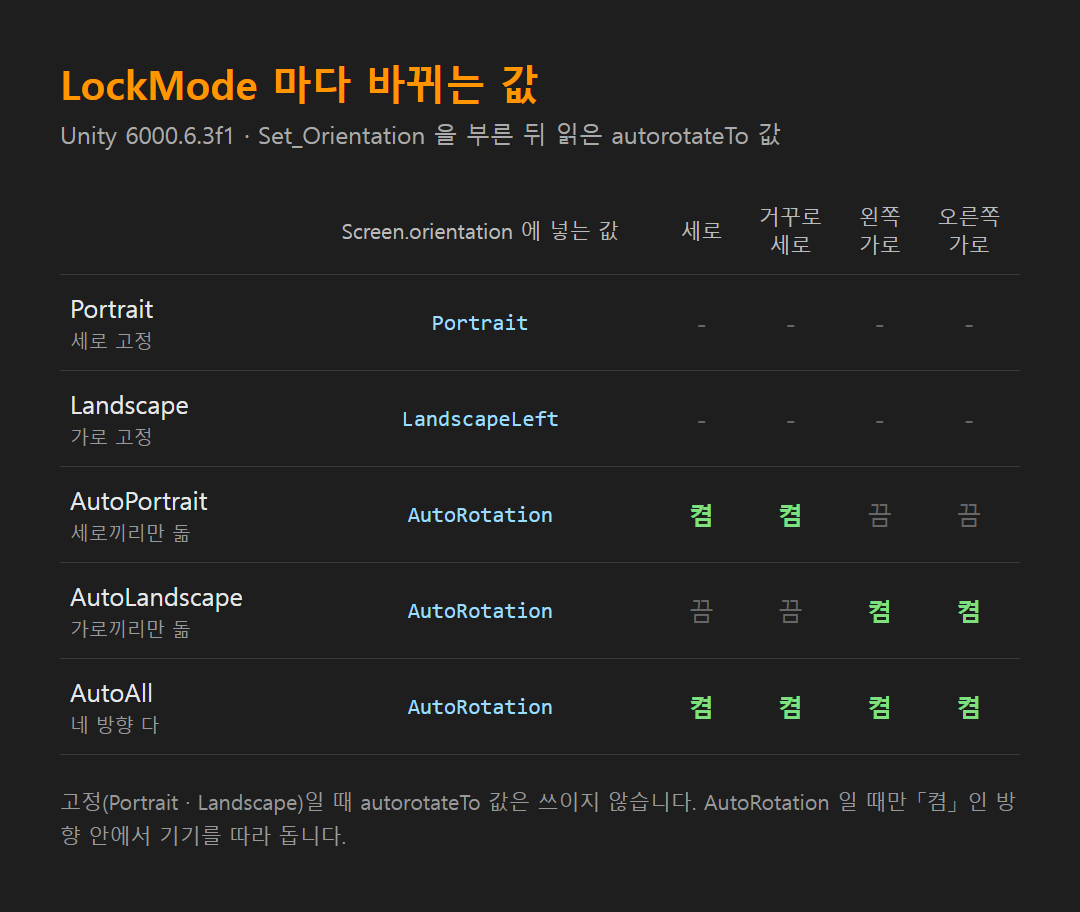
Unity 6000.6.3f1 에서 다섯 모드를 차례로 부르고 autorotateTo 값을 읽어 본 결과입니다. 고른 대로 켜지고 꺼졌습니다. 다만 Windows 에디터에서는 어느 값을 넣어도 Screen.orientation 이 계속 Portrait 로 읽혔습니다. 실제로 도는 모습은 기기에 빌드해서 확인합니다.
3. 버튼으로 가로 · 세로 바꾸기
using TMPro;
using UnityEngine;
using UnityEngine.UI;

//CodeFinder 코드파인더
//From https://codefinder.janndk.com/
public class RotateButton : MonoBehaviour
{
    public OrientationLock orientation_lock;
    public Button button_rotate;
    public TMP_Text text_rotate;

    void Start()
    {
        if (button_rotate != null)
        {
            button_rotate.onClick.RemoveAllListeners();
            button_rotate.onClick.AddListener(On_ClickRotate);
        }
        Show_Label();
    }

    void On_ClickRotate()
    {
        if (orientation_lock == null)
            return;
        if (orientation_lock.lock_mode == OrientationLock.LockMode.Landscape)
            orientation_lock.Set_Orientation(OrientationLock.LockMode.Portrait);
        else
            orientation_lock.Set_Orientation(OrientationLock.LockMode.Landscape);
        Show_Label();
    }

    void Show_Label()
    {
        if (text_rotate == null || orientation_lock == null)
            return;
        text_rotate.text = orientation_lock.lock_mode == OrientationLock.LockMode.Landscape ? "세로로 보기" : "가로로 보기";
    }
}
세로 앱에서 영상이나 지도만 크게 볼 때 쓰는 꼴입니다. 같은 씬의 OrientationLock 을 orientation_lock 칸에 끌어 넣고, 버튼과 버튼 글자를 각각 할당합니다. 버튼 글자 칸은 TMP_Text 라서 Button - TextMeshPro 로 만든 버튼을 씁니다. 누를 때마다 가로 고정과 세로 고정을 오가고, 버튼 글자는 다음에 바뀔 방향을 보여 줍니다.
방향이 바뀌면 Screen.width 와 Screen.height 가 서로 바뀝니다. UI 는 Canvas Scaler 가, 노치 여백은 유니티 노치 화면 대응 · 안전 영역 (Screen.safeArea) 의 SafeArea 가 다시 맞춰 주므로, 두 방향 모두에서 UI 가 어떻게 놓이는지 한 번씩 봐 둡니다.
함수(function)
Start : 버튼에 On_ClickRotate 를 걸고 버튼 글자를 띄웁니다.
On_ClickRotate : 가로 고정이면 세로로, 아니면 가로로 바꿉니다.
Show_Label : 지금 방향에 맞춰 버튼 글자를 바꿉니다.
4. 안 될 때 — 자주 하는 실수
에디터에서 눌러도 화면이 안 돈다
정상입니다. Screen.orientation 은 안드로이드 · iOS 같은 모바일에서만 적용됩니다. 에디터에서는 Game 창 해상도를 1080x1920 · 1920x1080 처럼 바꿔 가며 UI 를 보고, 회전은 기기에서 확인합니다.
켜지는 순간에는 기기 방향대로 뜬다
스크립트가 값을 바꾸기 전, 스플래시 화면 동안에는 Player Settings 의 Default Orientation 을 따릅니다. 이 값이 Auto Rotation 이면 기기 방향대로 뜹니다. 앱 전체가 한 방향이면 Player Settings 쪽을 그 방향으로 바꿉니다.
방향을 바꾼 뒤 터치 위치가 어긋난다
Unity 문서에 따르면 화면 방향을 바꾸면 터치 좌표도 같이 돌아갑니다. 화면 좌표를 미리 저장해 두고 쓰는 코드가 있으면 방향이 바뀐 뒤 다시 계산합니다.
안드로이드 16 태블릿에서 고정이 풀린다
안드로이드 16(API 36)을 대상으로 빌드한 앱은 짧은 쪽 폭이 600dp 이상인 큰 화면에서 방향 고정이 무시됩니다. 다만 게임으로 분류된 앱(android:appCategory)은 빠집니다. 설정을 건드리지 않은 Unity 6000.6.3f1 프로젝트에서 Player Settings 의 Android 앱 분류(appCategory) 값을 읽어 보니 game 이었습니다. 빌드한 매니페스트까지는 확인하지 않았으니, 태블릿 대응이 중요하면 빌드 뒤 AndroidManifest.xml 의 android:appCategory 를 한 번 봅니다. Target API Level 이 Automatic 이면 설치된 SDK 에 따라 36 이 될 수 있습니다. 게임이 아닌 앱으로 바꿨다면 태블릿에서 화면이 돌 수 있으니, 두 방향 모두 UI 가 깨지지 않게 만들어 둡니다. 매니페스트에 PROPERTY_COMPAT_ALLOW_RESTRICTED_RESIZABILITY 를 넣으면 잠시 예전처럼 둘 수 있지만, API 37 을 대상으로 하면 이 방법도 막힙니다.
화면 방향은 Unity 공식 문서 Screen.orientation · 안드로이드 문서 Android 16 동작 변경 과 Unity 6000.6.3f1 에디터(Windows)에서 값을 읽어 본 결과를 기준으로 적었습니다.
'Unity3D > C#' 카테고리의 다른 글
| 유니티 DontDestroyOnLoad 씬 바뀌어도 유지 · 싱글톤 관리자 (GameManager.instance) (0) | 2026.11.06 |
|---|---|
| 유니티 Canvas Scaler 해상도 대응 · Match 값 고르기 (Scale With Screen Size) (0) | 2026.11.05 |
| 유니티 Scroll View 맨 아래로 자동 스크롤 (ScrollRect verticalNormalizedPosition) (0) | 2026.11.04 |
| 유니티 코루틴으로 몇 초 뒤 실행 (WaitForSeconds, StopCoroutine) (0) | 2026.11.03 |
| 유니티 씬 전환 · 로딩 바 (SceneManager.LoadScene, LoadSceneAsync) (0) | 2026.11.02 |


